 Admin
Admin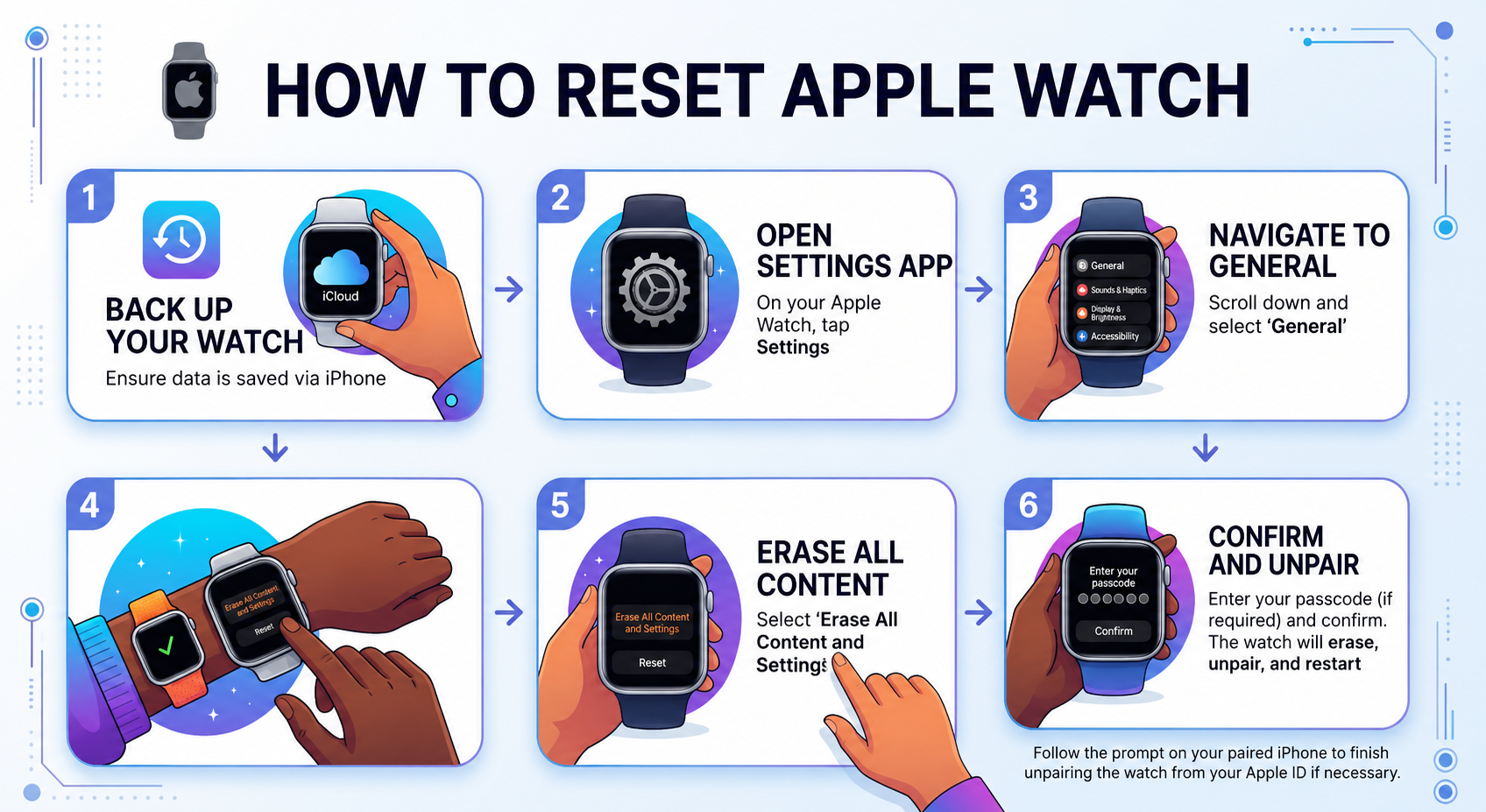
Users often need to understand how to reset Apple Watch when the device starts showing performance issues such as freezing, lagging, or unresponsive apps. A reset helps clear software glitches, remove temporary bugs, and restore smooth performance. Many users also choose to reset their Apple Watch when they plan to pair it with a new iPhone or troubleshoot syncing problems. In some cases, a reset becomes necessary when the device no longer responds properly to touch or buttons, making normal use difficult.
Another common reason for resetting is preparing the Apple Watch for resale or transfer to another person. A factory reset removes all personal data, health information, and settings, ensuring privacy and security for the original owner. Users also perform a reset when they forget their passcode or experience activation issues. Understanding how to reset Apple Watch in these situations helps users handle device problems efficiently without needing professional repair in most cases.
How to Reset Apple Watch Using Settings
Users can easily learn how to reset Apple Watch through the Settings app when the device is working normally. This method offers the simplest way to erase all content and restore factory settings without needing a computer or additional tools. To begin, users open the Settings app on their Apple Watch, go to General, and then select Reset. From there, they choose “Erase All Content and Settings,” which removes all data, apps, and personalized settings from the device. The watch may ask for a passcode before continuing, ensuring that only the owner can perform the reset.
After confirming the action, the Apple Watch begins the reset process and restarts automatically. This process may take a few minutes depending on the amount of stored data. Once completed, the device returns to its original setup screen, just like when it was first purchased. This method is commonly used because it is quick, safe, and does not require the paired iPhone. It remains one of the most reliable ways to handle how to reset Apple Watch for everyday users.
How to Reset Apple Watch Using iPhone
| Step | Action |
|---|---|
| 1 | Open the Watch app on your iPhone |
| 2 | Go to the My Watch tab |
| 3 | Tap General settings |
| 4 | Scroll and select Reset |
| 5 | Tap Erase Apple Watch Content and Settings |
| 6 | Confirm the action and enter Apple ID if required |
Resetting through an iPhone provides a convenient way to understand how to reset Apple Watch when the device is already paired. This method allows users to control the reset process directly from their phone without interacting much with the watch itself. It is especially useful when the Apple Watch is functioning but needs a full factory reset before selling, gifting, or re-pairing with another device.
Once the user confirms the reset, the Apple Watch automatically erases all data and unpairs from the iPhone. If the watch has a cellular plan, the system may ask whether to keep or remove the plan during the process. After completion, the device restarts and returns to its original setup screen, making it ready for a fresh configuration or new user.
How to Reset Apple Watch Without Passcode
Users can still learn how to reset Apple Watch even if they forget the passcode, as Apple provides a recovery method for locked devices. This process allows users to erase the watch using hardware buttons while the device remains on the charger. To begin, users place the Apple Watch on its charger, then press and hold the side button until the power screen appears. After that, they press and hold the Digital Crown until the option to erase all content and settings appears on the screen. This method ensures that users can regain control of their device even when they cannot unlock it normally.
Once the reset process starts, the Apple Watch deletes all data and restores factory settings automatically. This step is useful in situations where the device becomes locked due to multiple incorrect passcode attempts or when the user forgets their credentials. After completion, the watch restarts and shows the setup screen, ready to be paired again. Understanding how to reset Apple Watch without a passcode helps users handle emergency situations without needing technical support.
Important Things to Do Before Resetting
Before learning how to reset Apple Watch, users should take a few important precautions to avoid data loss and future setup issues. The most important step is backing up the Apple Watch through the paired iPhone, as this ensures that health data, app settings, and personalized preferences remain safe. Users should also make sure the watch is fully charged or connected to its charger to prevent interruptions during the reset process. In addition, unpairing the Apple Watch from the iPhone properly helps remove Activation Lock and avoids login problems later.
Another key consideration involves checking Apple ID credentials and connected services. Users should confirm they remember their Apple ID and password, as they may need it during reactivation after the reset. It is also helpful to turn off or disconnect any active cellular plans if the watch includes cellular support. Taking these precautions ensures a smooth and trouble-free experience when performing how to reset Apple Watch, especially for users preparing the device for resale or a new setup.
Common Issues After Reset and How to Fix Them
After learning how to reset Apple Watch, users may sometimes face minor issues during or after the setup process. One common problem is difficulty pairing the watch with an iPhone again. This usually happens when Bluetooth is not enabled, the devices are not close enough, or the Apple Watch still has Activation Lock enabled. Restarting both devices, enabling Bluetooth, and ensuring the correct Apple ID is used can quickly resolve most pairing problems.
Another issue users may experience is missing data or apps after restoring the watch. This typically occurs when a proper backup was not created before the reset. In such cases, the Apple Watch will start as a fresh device without previous settings or health data. Users may also notice temporary syncing delays with notifications or fitness tracking after setup. These issues usually fix themselves after a short period once the device fully syncs with the iPhone. Understanding how to reset Apple Watch along with these troubleshooting steps helps users recover smoothly from common post-reset challenges.
Safety Tips and Data Backup Guide
Before performing how to reset Apple Watch, users should always focus on safety and proper data backup to avoid losing important information. The safest approach is to back up the Apple Watch through the paired iPhone, as this automatically saves health data, app layout, settings, and synced content. Users should also ensure that both devices stay connected during the backup process to prevent incomplete data transfer. Keeping the watch charged during this stage also helps avoid interruptions that could affect the reset or backup process.
Another important safety tip involves securing account access before resetting the device. Users should confirm they remember their Apple ID credentials, as Apple uses this information to reactivate the watch after reset. It also helps to disable or remove any active cellular plans if the Apple Watch supports mobile service. Following these precautions ensures a smooth experience when learning how to reset Apple Watch, while also protecting personal data and preventing setup issues after the reset is complete.
Conclusion
Understanding how to reset Apple Watch helps users solve performance issues, remove software glitches, and prepare the device for a new setup or owner. A factory reset clears all data and settings, returning the watch to its original condition. Apple provides multiple reset options, including settings reset, iPhone reset, and recovery reset without a passcode, making the process flexible for different situations. When users follow the correct steps, they can complete the reset safely without damaging the device or losing control of their account.
Overall, knowing how to reset Apple Watch ensures better device management and smoother troubleshooting. Whether users want to fix issues, improve performance, or protect their personal data before selling the device, a proper reset provides a reliable solution. Taking time to back up data and follow safety steps makes the entire process more secure and efficient.
FAQs
How do I reset my Apple Watch quickly?
You can reset it from Settings by going to General > Reset > Erase All Content and Settings.
Will resetting Apple Watch delete everything?
Yes, a factory reset removes all data, apps, and settings from the device.
Can I reset Apple Watch without iPhone?
Yes, you can reset it directly from the watch or using recovery steps if needed.
Why won’t my Apple Watch reset?
It may be due to Activation Lock, low battery, or software issues requiring troubleshooting.
Visit for More information : Multiple Magazines