 Admin
Admin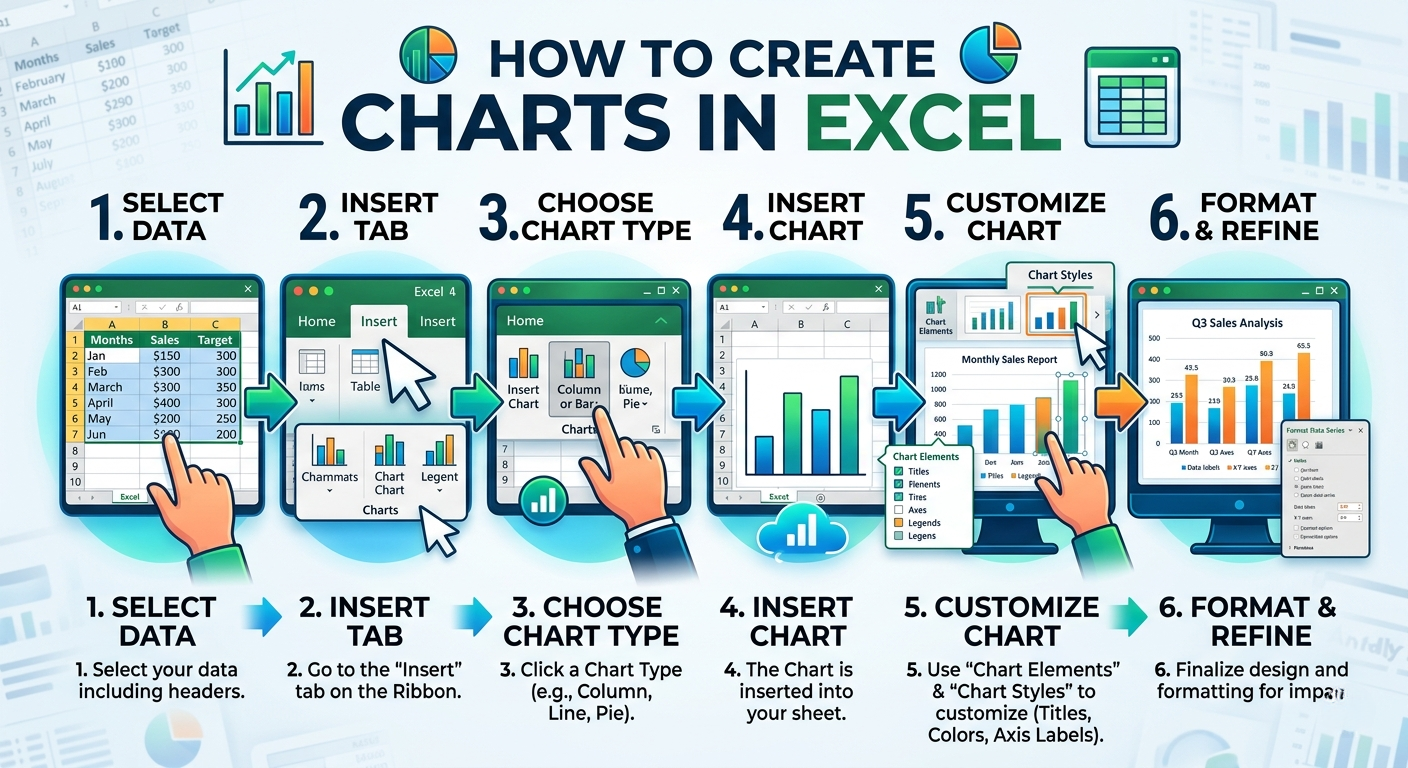
In today’s digital and data-driven environment, knowing how to create charts in excel is an essential skill for students, professionals, and business users. Excel charts help transform raw numbers into clear visual insights, making it easier to understand patterns, trends, and comparisons without going through long tables of data. Instead of analyzing rows of numbers manually, a chart gives you an instant visual summary that improves clarity and decision-making.
When you learn how to create charts in excel, you don’t just learn a technical feature—you improve your ability to communicate data effectively. People widely use charts in reports, presentations, dashboards, and business meetings because they make information more engaging and easier to interpret. Excel offers multiple visualization options, from simple bar charts to advanced line graphs, that suit different types of data.
Why Charts Matter in Excel
Understanding how to create charts in excel is important because charts convert complex data into simple visual stories that anyone can understand. Data in rows and columns makes it difficult to quickly identify trends or changes. However, a well-designed chart highlights key points instantly and helps users make faster and more accurate decisions in business, education, and research.
Charts in Excel also improve communication and presentation quality. Instead of explaining long numerical reports, you can present a visual chart that clearly shows performance, comparisons, or growth over time. This makes your data more persuasive and professional, especially in meetings or reports where clarity and impact are important.
Preparing Data Before Creating Charts
Before learning how to create charts in excel, it is very important to prepare your data correctly because the quality of your chart depends on how well your data is organized. Clean and structured data ensures that Excel can easily interpret values and generate accurate visual results. If the data is messy or inconsistent, the chart may display incorrect or confusing information, which reduces its usefulness.
A good practice is to arrange your data in rows and columns with clear headings. Each column should represent a single category, such as sales, months, or products, while each row should contain related values. Avoid leaving empty cells or mixing different data types in one column. Proper formatting at this stage makes the process of how to create charts in excel much smoother and ensures your final chart looks professional and easy to understand.
Step-by-Step Guide to Insert Charts in Excel
When learning how to create charts in excel, the actual insertion process is simple, but it must be done carefully to get accurate results. First, select the data range you want to visualize, including headings, because Excel uses these labels to build the chart structure. Once your data is selected, go to the “Insert” tab on the Excel ribbon, where you will find multiple chart options such as column, line, pie, and bar charts.
After selecting a chart type, Excel will automatically generate a visual representation of your data on the worksheet. You can then move or resize the chart according to your preference. This step is crucial because it transforms raw numbers into a visual format that is easier to interpret. Practicing this process repeatedly will help you master how to create charts in excel and improve your speed and accuracy in creating professional reports.
Types of Charts You Can Use in Excel
When exploring how to create charts in excel, it is important to understand that Excel offers different chart types for different purposes. Each chart type is designed to represent data in a unique way, helping users choose the most effective visual format. For example, column and bar charts are commonly used for comparisons, while line charts are ideal for showing trends over time. Pie charts, on the other hand, are used to display proportions or percentages of a whole.
Choosing the right chart type is essential for clear data communication. If you select the wrong type, your audience may misunderstand the information or miss important insights. Excel also allows users to switch between chart types easily, so you can experiment and find the best visual representation for your dataset. Understanding these options is a key part of mastering how to create charts in excel and building professional-quality reports.
How to Customize Charts for a Professional Look
Once you understand how to create charts in excel, the next important step is customization, which helps turn a basic chart into a professional-looking visual. Excel provides several design tools that allow you to change chart titles, colors, styles, and layouts. You can also add data labels to show exact values, making your chart more informative and easier to read at a glance.
Customization is not just about appearance—it also improves clarity and communication. For example, adjusting axis titles helps viewers understand what each side of the chart represents, while applying consistent colors makes your data easier to follow. By refining these small details, you can significantly improve the impact of your charts and fully master how to create charts in excel for business or academic use.
Common Mistakes to Avoid
When learning how to create charts in excel, many users make simple mistakes that reduce the quality and clarity of their visuals. One of the most common errors is selecting incomplete or poorly organized data. If the data range is incorrect, the chart may display missing values or misleading comparisons, which can confuse the audience instead of helping them understand the information.
Another frequent mistake is using the wrong chart type for the data. For example, using a pie chart for time-based trends or a line chart for unrelated categories can make the information difficult to interpret. It is also important to avoid overcrowding charts with too many elements, as this can make them look cluttered and unprofessional. Paying attention to these details ensures better results when applying how to create charts in excel effectively.
Pro Tips for Making Better Excel Charts
Mastering how to create charts in excel goes beyond just inserting a chart—it also involves using smart techniques that improve clarity and professionalism. One useful tip is to keep your charts simple and focused on a single message. Avoid adding unnecessary elements that do not support the main idea, as this can distract viewers from the key insight you want to communicate.
Another important tip is to use consistent formatting across all charts in a report or presentation. Matching colors, fonts, and styles helps create a clean and professional look. You should also regularly update your data ranges so your charts always reflect the most recent information. These small improvements make a big difference in effectively applying how to create charts in excel in real-world scenarios.
Conclusion
In conclusion, learning how to create charts in excel is a valuable skill that helps transform raw data into meaningful visual insights. Excel charts make it easier to understand patterns, compare values, and present information in a clear and professional way. From preparing your data correctly to selecting the right chart type and customizing its appearance, every step plays an important role in creating effective visuals that improve communication and decision-making.
When used properly, Excel charts can significantly enhance reports, presentations, and business analysis. They not only save time but also make complex data easier to interpret for any audience. By practicing regularly, you can fully master how to create charts in excel and use it confidently in academic, professional, or personal projects.
FAQs
What is the easiest chart to create in Excel?
Column and bar charts are the easiest because they require simple data selection and minimal formatting.
Can I change a chart after creating it in Excel?
Yes, Excel allows you to modify chart type, colors, labels, and layout at any time.
Which chart is best for showing trends over time?
Line charts are best for displaying changes and trends over a period of time.
Do I need advanced skills to create charts in Excel?
No, basic chart creation is simple and can be learned quickly with practice.
Visit for More information : Multiple Magazines