 Admin
Admin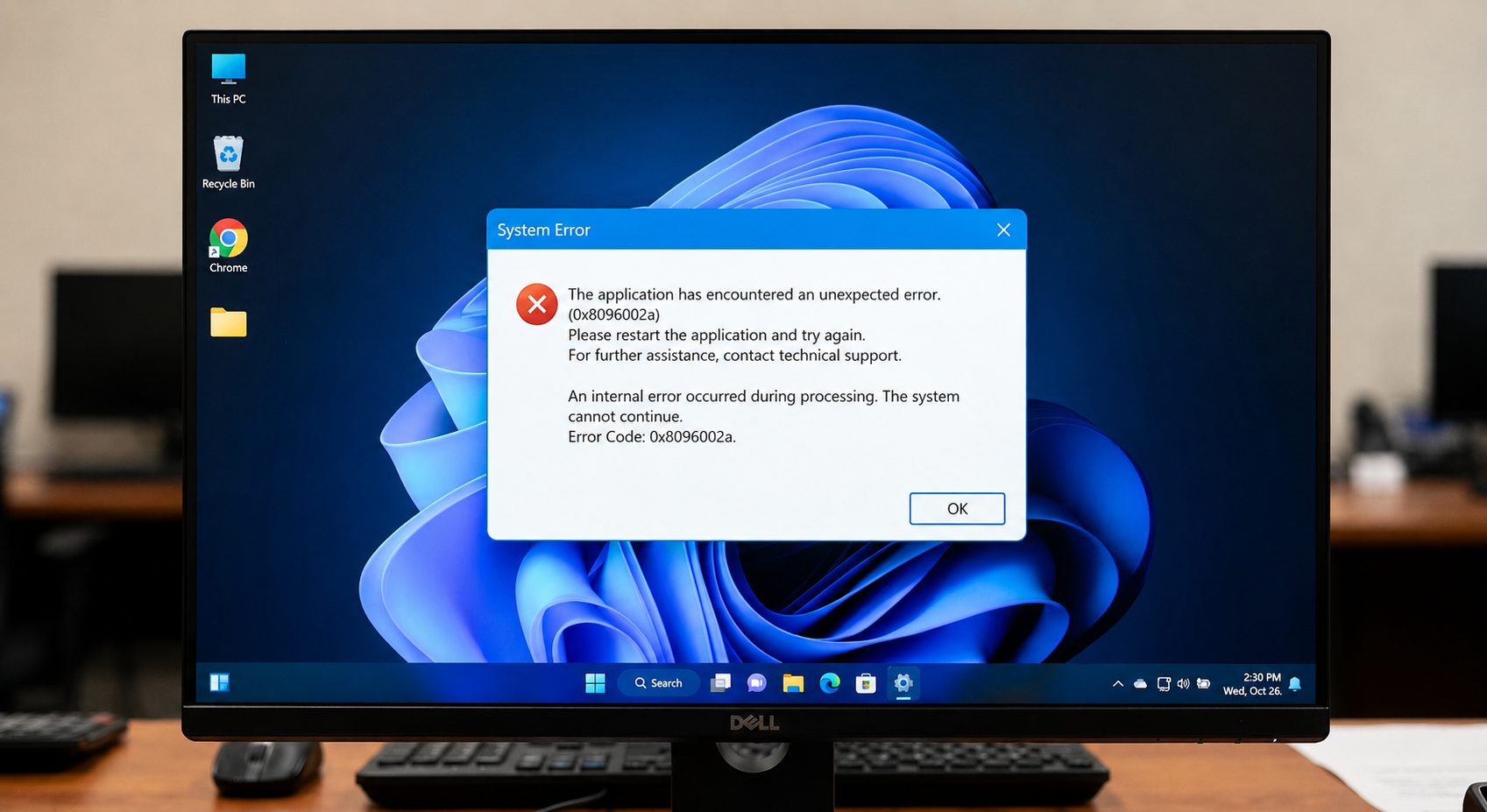
The error 0x8096002a is a common Windows extraction issue that appears when users try to open or unzip compressed files such as ZIP, RAR, or 7z archives. Instead of extracting the content normally, Windows File Explorer suddenly stops the process and shows an error message, blocking access to the files inside. This issue often confuses users because the file may look completely fine, yet Windows still fails to process it correctly. In most situations, the problem is not with the user but with how the system handles the compressed data. It usually happens due to file corruption, unsupported compression methods, or internal system limitations in Windows extraction tools, making it an important error to understand for anyone who frequently downloads or works with archived files.
What is Error 0x8096002A?
The error 0x8096002a is a Windows system extraction failure code that appears when File Explorer cannot properly unpack a compressed file. In simple terms, Windows recognizes the archive but fails while reading or decoding its contents during the extraction process. This error usually happens when users work with ZIP, RAR, or other compressed formats that require complete and error-free data for proper extraction. Users often see messages such as “The extraction operation was not completed” or “An unexpected error is preventing the archive from being extracted,” which clearly show that the system stops the process midway due to a processing issue. This problem occurs more frequently in Windows 10 and Windows 11 because the built-in extractor mainly handles basic compression formats and struggles with advanced, encrypted, or partially damaged archives, which leads to the appearance of error 0x8096002a
Main Causes of Error 0x8096002A
The error 0x8096002a usually occurs due to a combination of technical and file-related issues rather than a single fault. One major cause is a damaged or incomplete archive file, where an interrupted download or file corruption makes the archive unreadable for Windows File Explorer. Another major reason is the limitation of Windows’ built-in extraction tool, which does not fully support advanced compression formats, large archives, or encrypted files. In many cases, antivirus software also interferes by blocking certain files inside the archive when it detects suspicious activity. Additionally, permission restrictions in system folders or insufficient access rights can stop Windows from extracting the content properly, which ultimately triggers error 0x8096002a during the extraction process.
Corrupted or Incomplete Archive Files
One of the most common reasons behind the error 0x8096002a is a corrupted or incomplete archive file. This happens when a ZIP, RAR, or 7z file does not download properly or the download process gets interrupted. Even a small missing piece of data inside the archive can make the entire file unreadable for Windows File Explorer and causes the extraction to fail immediately. In some cases, file corruption also happens during transfer from one device to another, especially when the storage medium is damaged or unstable.
Another important point is that corrupted archives do not always show visible signs of damage. The file may look normal in size and name, but the internal structure becomes broken, which leads to extraction errors like 0x8096002a. When Windows tries to unpack such files, it cannot verify the integrity of the compressed data and stops the process with an error. This is why users often re-download the file from a trusted source or check file integrity first to fix this issue.
Windows File Explorer Limitations
Another major reason behind the error 0x8096002a is the limitation of Windows File Explorer itself. The built-in extraction tool works well for basic ZIP files, but it cannot properly handle advanced compression formats or heavily encrypted archives. As a result, when users open complex RAR or 7z files, Windows often fails during the unpacking process and shows this error.
In many cases, File Explorer also struggles with large archives that contain thousands of files or use modern compression algorithms. It provides limited support for password-protected or multi-part archives, which increases the chances of extraction failure. Because of these restrictions, Windows often stops the process midway even when the file remains undamaged, since the built-in tool cannot correctly interpret the structure, which leads to error 0x8096002a.
Antivirus and Permission Conflicts
The error 0x8096002a can also appear due to interference from antivirus software or system permission restrictions. Antivirus programs scan compressed files before or during extraction, and they block or quarantine specific items when they detect anything suspicious inside the archive. This interruption stops Windows File Explorer and causes the extraction process to fail unexpectedly, resulting in the error.
Permission issues also play a major role. When users extract files into a protected system folder or a location where the user account does not have full write access, Windows cannot complete the operation. In such cases, even a valid and undamaged archive triggers error 0x8096002a because the system lacks permission to create or modify files in the selected destination.
Step-by-Step Easy Fixes
Fixing the error 0x8096002a usually becomes simple once users identify the cause. The first and most effective step involves re-downloading the archive file, especially when corruption may have occurred during the download. A fresh copy often resolves hidden integrity issues that Windows cannot repair. Next, users should extract the file to a simple location like a new folder on the desktop or directly on the C drive, since complicated or protected directories sometimes block extraction.
Another useful fix involves temporarily disabling antivirus software and trying the extraction again. This helps users check whether security tools interfere with the process. Users should also ensure full permissions for the destination folder by running File Explorer as an administrator. If the problem continues, switching to a third-party extraction tool like 7-Zip or WinRAR often resolves the issue because these tools handle complex and encrypted archives more effectively than Windows’ built-in extractor, which helps eliminate error 0x8096002a quickly.
Best Tools to Fix Extraction Problems
When the error 0x8096002a keeps appearing in Windows File Explorer, third-party extraction tools often provide the most reliable solution. These tools handle complex compression formats, large archives, and encrypted files that the default Windows extractor cannot process properly. As a result, they reduce extraction failures and improve overall stability.
One of the most popular tools is 7-Zip, which offers a free, lightweight solution that supports almost all archive formats, including ZIP, RAR, and 7z. Users often prefer it because it extracts files that Windows cannot open at all. Another strong option is WinRAR, which works well for password-protected and multi-part archives. Both tools include advanced error recovery features that help fix extraction issues like error 0x8096002a and ensure smoother file handling in daily use.
Conclusion
The error 0x8096002a is a common Windows extraction problem that mainly occurs due to corrupted files, system limitations, antivirus interference, or permission issues. While it can seem frustrating at first, the issue is usually not serious and can be fixed with simple steps like re-downloading the file, changing the extraction location, or using a third-party tool like 7-Zip or WinRAR. Understanding the root cause is important because it helps users avoid repeated failures and manage compressed files more efficiently in the future. In most cases, switching away from Windows File Explorer for complex archives completely resolves the issue and ensures a smoother experience when handling downloaded files.
FAQs
What does error 0x8096002a mean?
It means Windows File Explorer failed to extract a compressed file due to corruption, limitation, or access issues.
Why does error 0x8096002a happen?
It usually happens because the archive is damaged, incomplete, encrypted, or not supported by Windows’ built-in extractor.
How can I fix error 0x8096002a quickly?
You can fix it by re-downloading the file, changing the extraction folder, disabling antivirus temporarily, or using 7-Zip or WinRAR.
Is error 0x8096002a a serious problem?
No, it is not serious. It is a common extraction issue and can usually be resolved in a few minutes with basic troubleshooting.
Visit for More information : Multiple Magazines